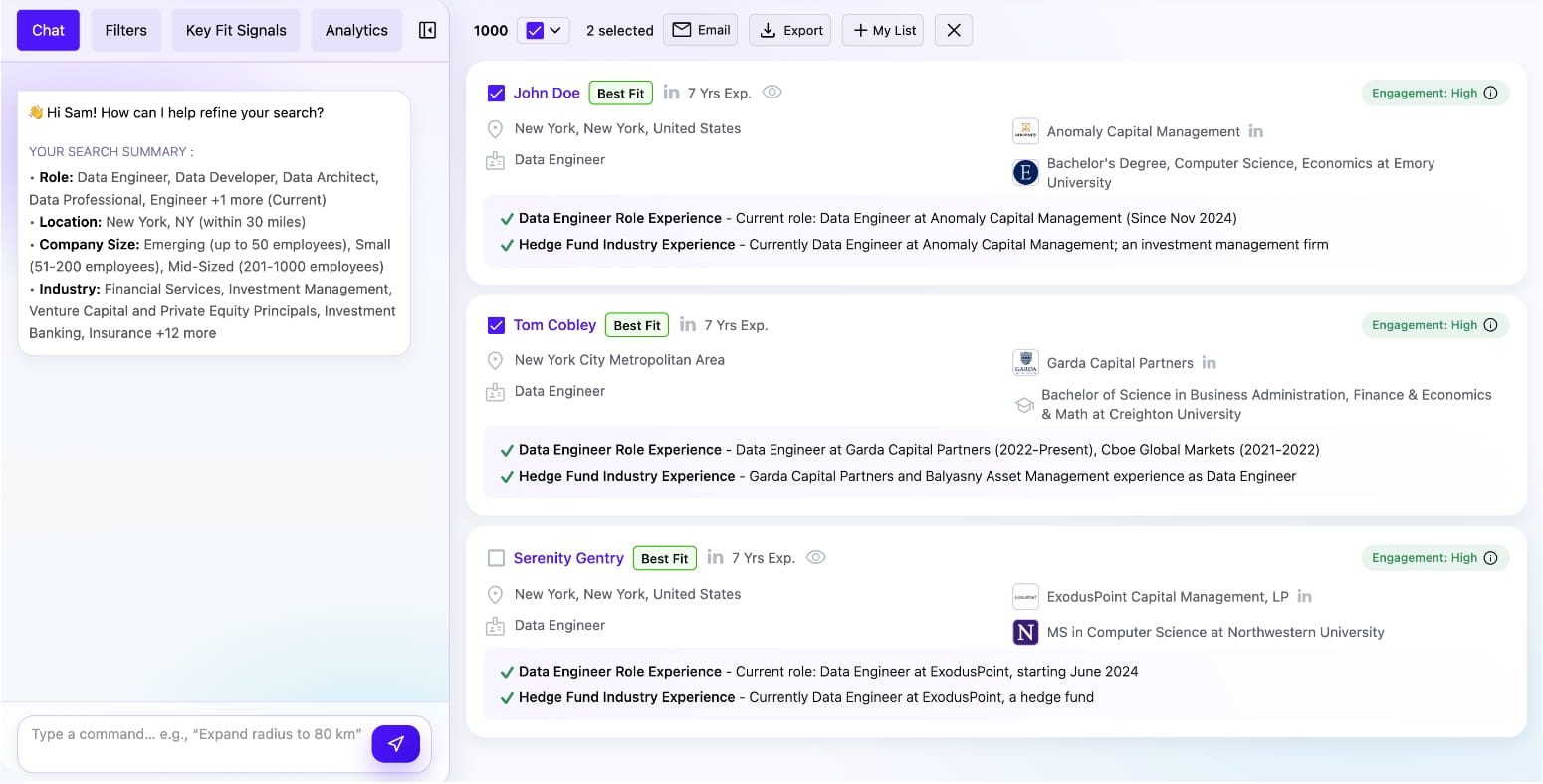
Search Result
After performing a search, the AI displays top-matching candidates in a split-view interface.
Top Navigation Bar
The result screen includes multiple tabs and actions to help you work with your search results:
- Chat – Refine your search using natural language conversation with the AI assistant
- Filters – Apply additional filters to narrow down results
- Key Fit Signals – Configure and adjust your screening criteria
- Analytics – View insights and statistics about your candidate pool
Bulk actions are available when candidates are selected: Email, Export, and + My List to save candidates to your lists.
Left Panel (Chat & Search Summary)
The AI assistant greets you and displays a summary of your current search criteria including:
- Role: The job titles and functions you’re searching for
- Location: Geographic area and radius for the search
- Company Size: Target company sizes (Emerging, Small, Mid-Sized, etc.)
- Industry: Target industries for candidate experience
Use the command input at the bottom to refine your search with natural language, e.g., “Expand radius to 80 km”.
Right Panel (Candidate Results)
Each candidate card displays:
- Candidate Name with a Best Fit badge for top matches
- Experience Level – Years of relevant experience
- Engagement Score – Indicates likelihood to respond (High, Medium, Low)
- Location – Current city and region
- Current Role & Company – Job title and employer with LinkedIn profile link
- Education – Degree and university information
- Key Fit Signals – Green checkmarks showing how the candidate matches your criteria (e.g., role experience, industry experience)
Select candidates using the checkbox to perform bulk actions like emailing, exporting, or adding to a list.